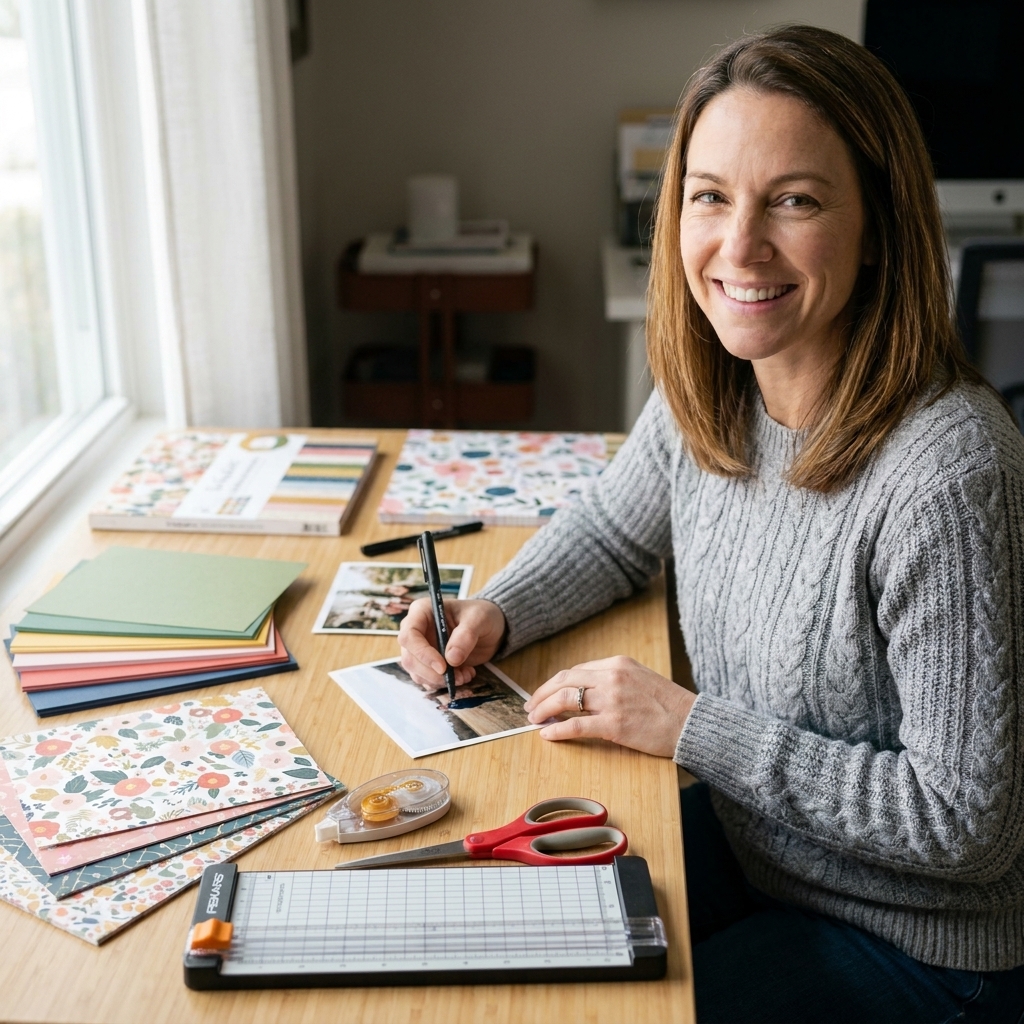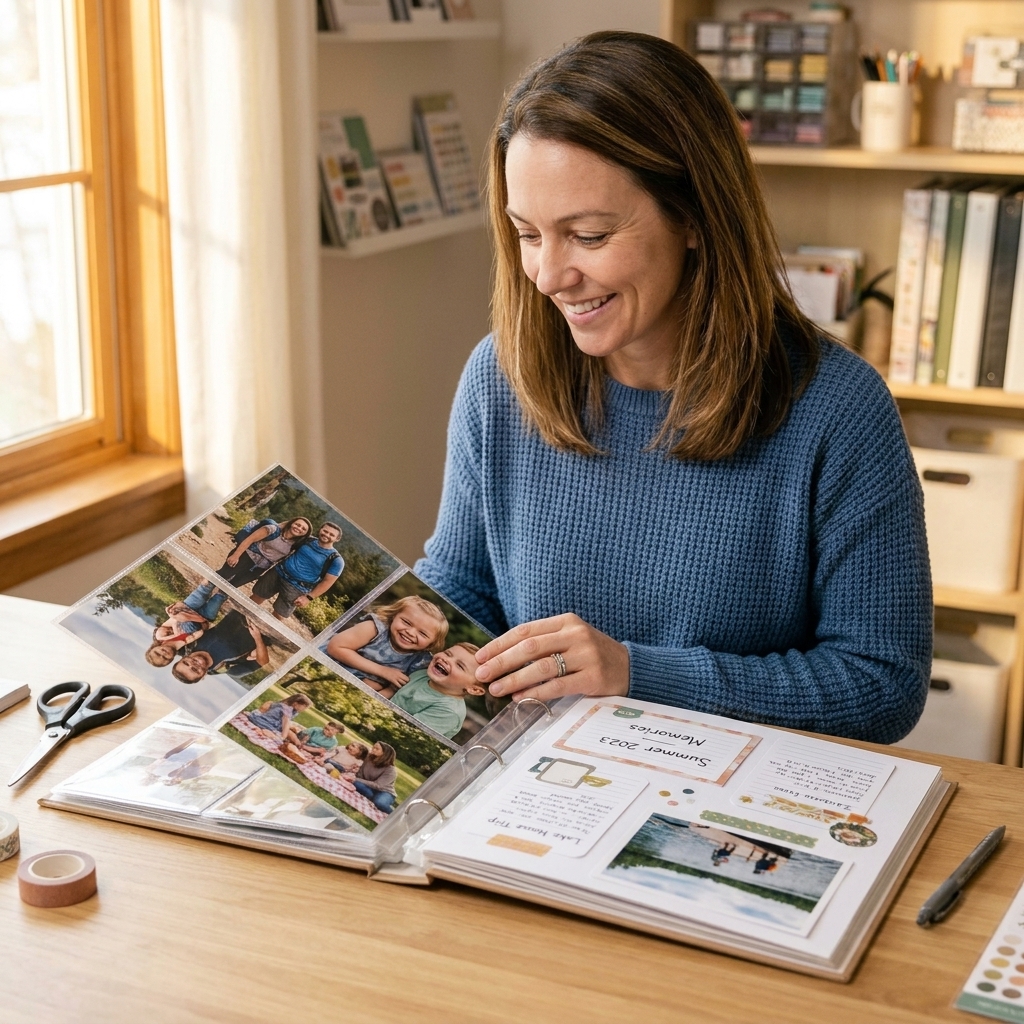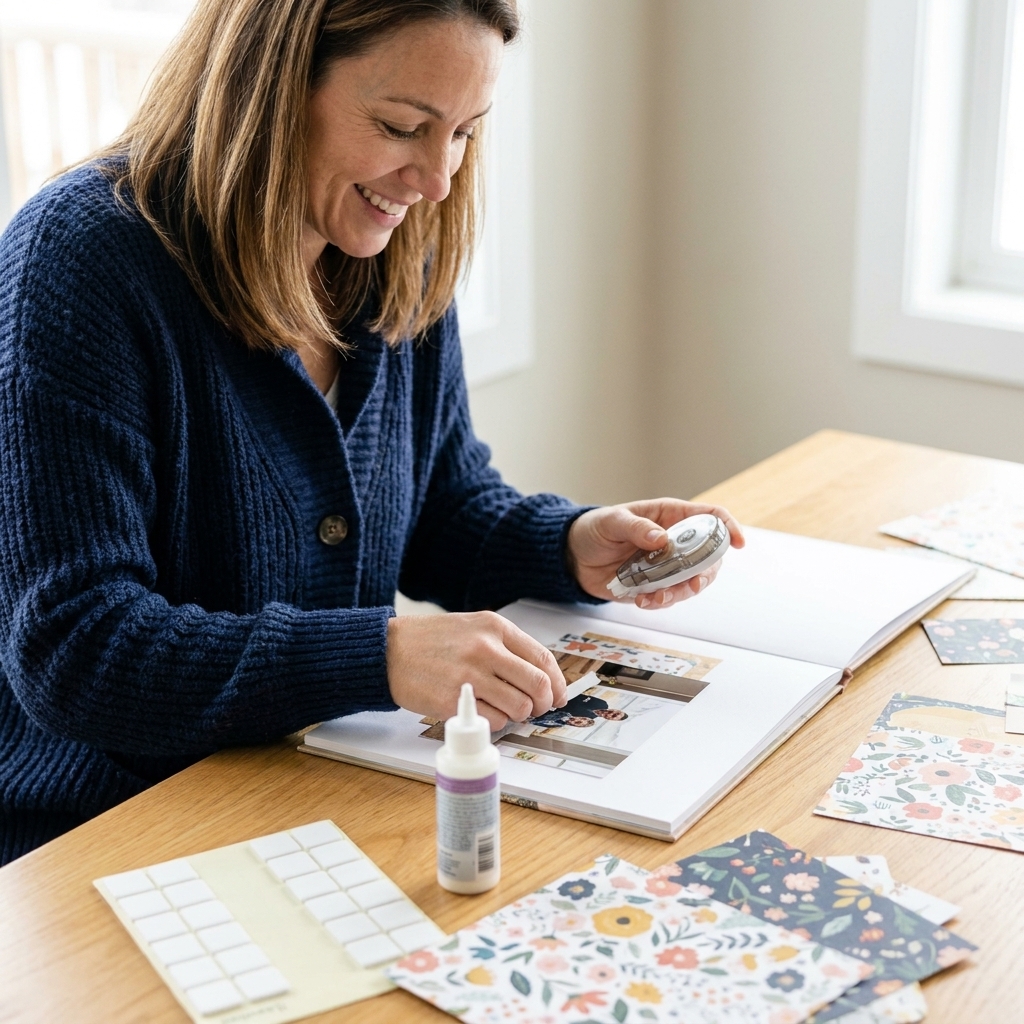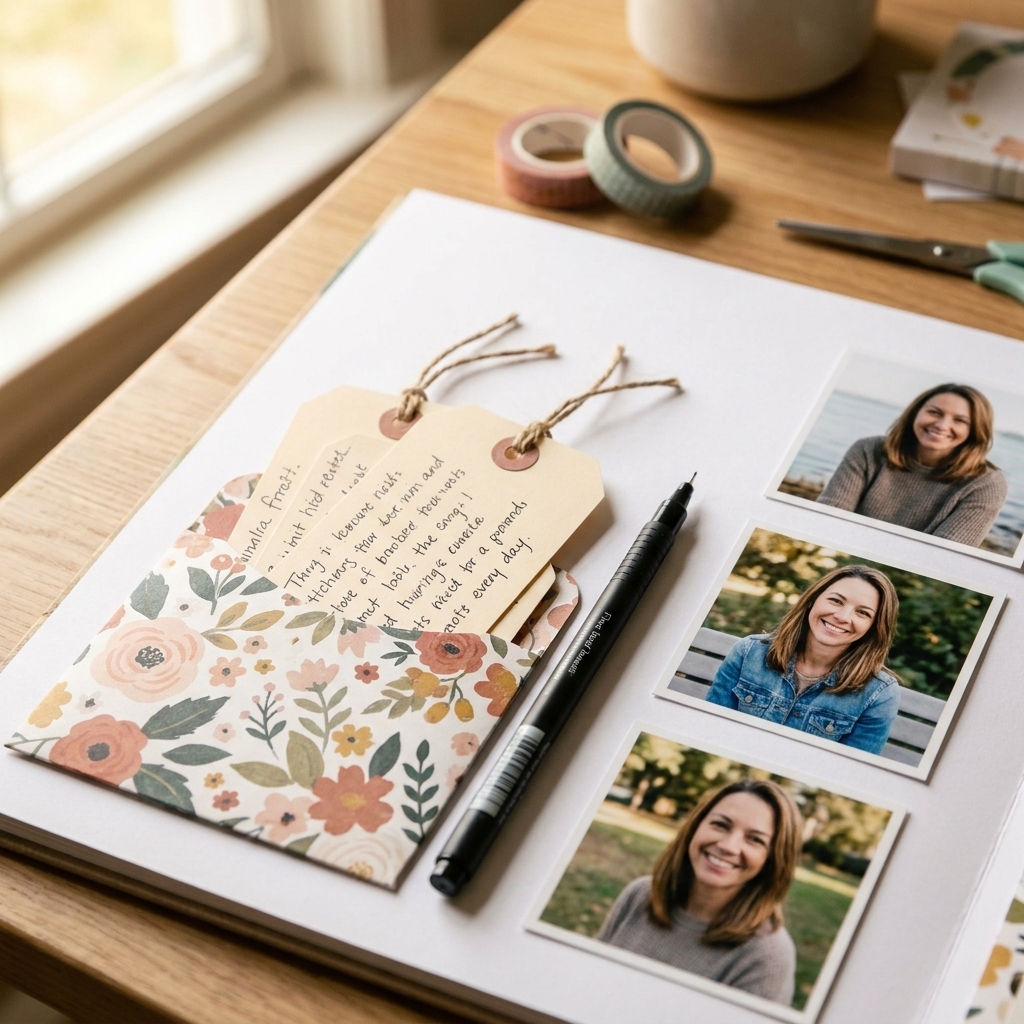
If you love the look of crisp digital journaling cards and trendy printable ephemera, but you still want the cozy feel of real cardstock, stitching, and dimensional adhesive, you are going to adore hybrid scrapbooking. It really is the best of both worlds. You design and print some elements digitally, then build the page with all the hands-on paper-crafting goodness.
I started hybrid scrapbooking the way I start most things: with a slightly overstuffed patterned paper bin, a printer that may or may not cooperate, and a big cup of optimism. The good news is that once you understand sizing and printing, hybrid layouts become incredibly easy and honestly very addictive.
What it is (and is not)
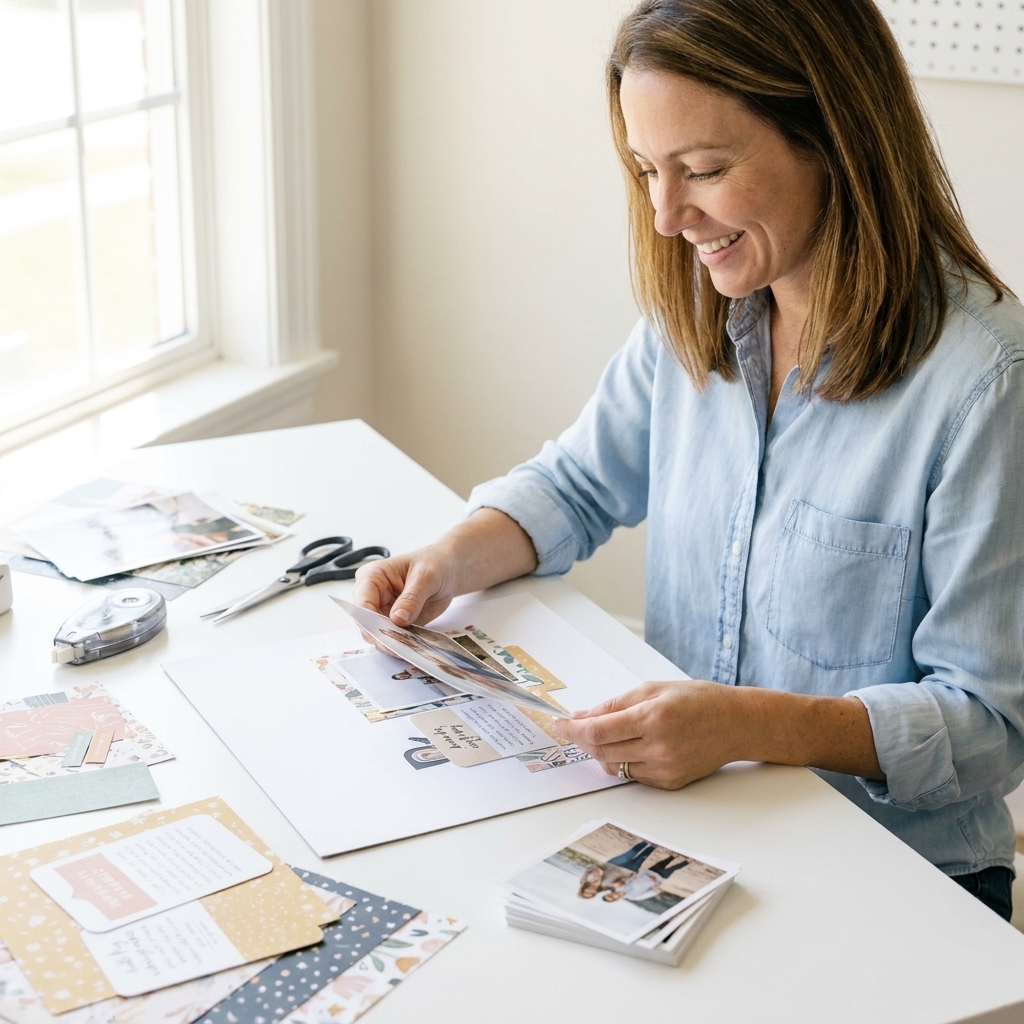
Hybrid scrapbooking simply means combining digital elements (printables, digital papers, journaling cards, titles, word strips, digital stamps) with physical supplies (patterned paper, chipboard, stickers, ink, stamps, washi, thread, and all your favorite adhesives).
It is not “all digital,” where the entire page stays on a screen. Hybrid ends with a real page you can flip through, touch, and tuck little bits into.
Why crafters love it
- Instant coordination: You can print a title in the exact color of your patterned paper.
- Easy journaling: Type your story, print it neatly, and keep your handwriting for when you feel like it.
- Stretch your stash: A few printed accents can make older papers feel brand new.
- Reprints are magic: If you mess up a label, you just print another.
Supplies to start
You do not need fancy software or a studio printer to make hybrid work. Start with what you have and add upgrades only if you feel the itch later.
Digital basics
- A computer or tablet for downloading and opening printables
- Software to place and resize: Canva, Google Slides, PowerPoint, Preview (Mac), or any basic photo editor
- A printer (inkjet or laser both work)
Paper crafting basics
- White cardstock (smooth 80 to 110 lb cover in the US, roughly 216 to 300 gsm is a sweet spot for printables)
- Adhesives: tape runner for flat items, liquid glue for tricky corners, foam tape for dimension
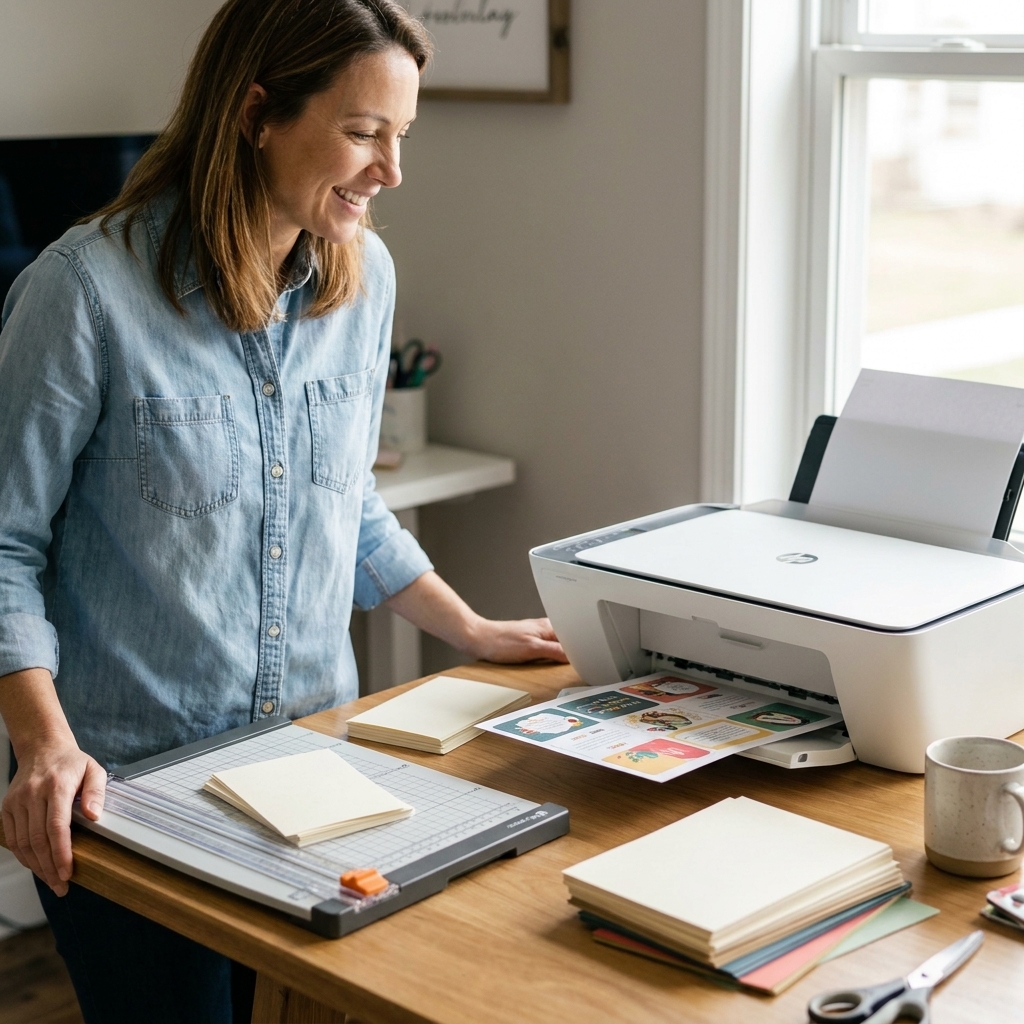
- Paper trimmer and scissors
- Optional but lovely: corner rounder, stapler, enamel dots, alphabet stickers, stamping ink
Getting size right
Sizing is where most beginners get stuck, so let me make it feel friendly. Hybrid elements usually fall into a few predictable categories. If you learn these, you can print almost anything confidently.
Common printable sizes
- Journaling cards: 3x4 inches and 4x6 inches
- Photo sizes: 4x6, 3x4, 2x3 (wallet-ish), 2x2 squares
- Word strips: often 0.5x2 to 1x4 inches, but flexible
- Tags: typically 2x3.5 inches (mini tag) up to 3x5 inches
- 12x12 digital paper: usually used for smaller mats and strips, or printed by tiling (in sections) if you want it as a background. Tiling works, but you will see seams unless you plan them under layers.
Pixels vs inches
When you print, your printer thinks in inches, but digital files are often measured in pixels. What connects them is PPI or DPI (dots or pixels per inch).
- 240 to 300 is a very common range for crisp printable designs.
- At 300 DPI, a 3x4 card should be about 900x1200 pixels.
- At 300 DPI, a 4x6 card should be about 1200x1800 pixels.
If your printable is designed for scrapbookers, it is usually already set up at a print-friendly resolution. Your job is mostly to print at the correct scale.
Printing without surprises
The number one hybrid heartbreak is hitting print and realizing your 3x4 card came out 3.3x4.4. That tiny shift makes layering look “off,” so let’s prevent it.
Non-negotiables
- Paper size must match (Letter vs A4).
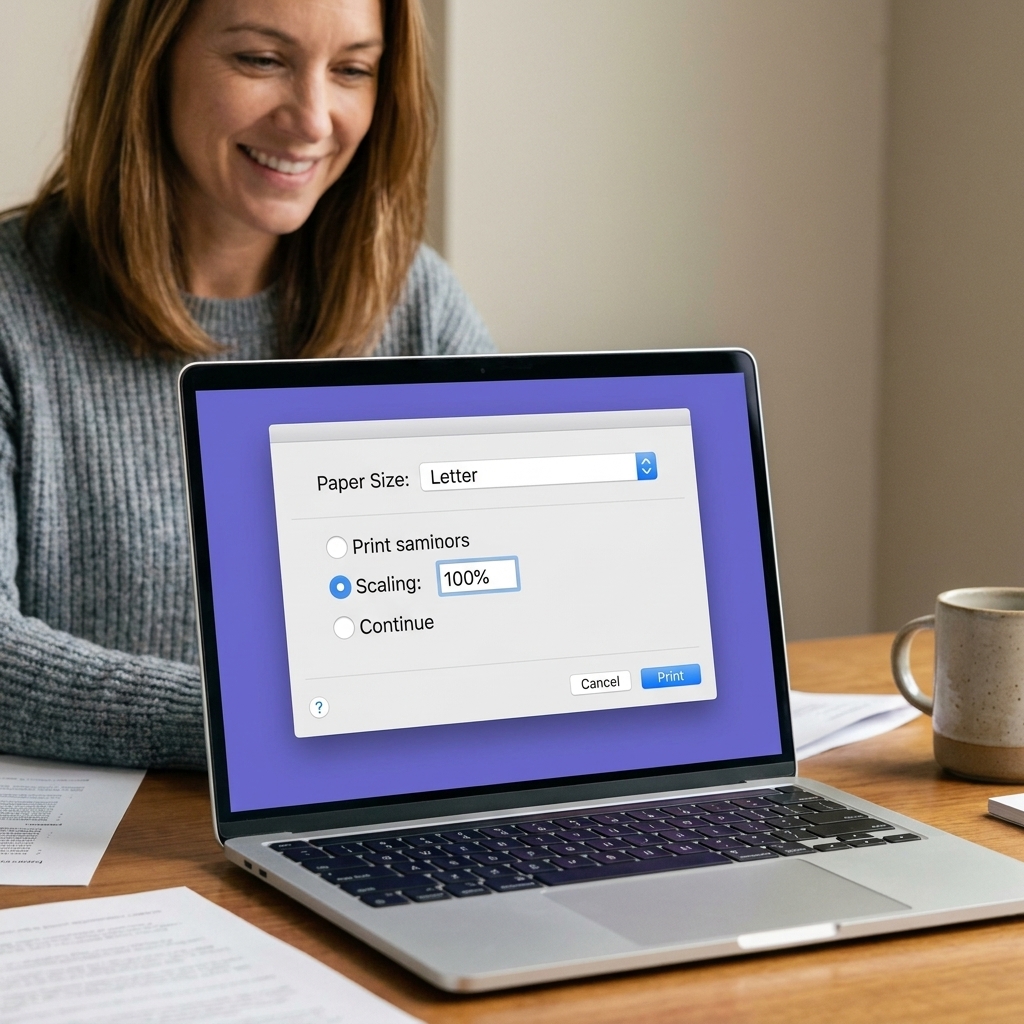
- Scaling should be 100% when exact measurements matter.
- Test print on cheap paper before you use the good cardstock.
Step 1: Confirm paper size
In your print settings, confirm your paper is set to the size you are actually using:
- US Letter: 8.5x11 inches
- A4: 8.27x11.69 inches
Mismatch here can trigger automatic scaling.
Step 2: Turn off sizing changes
Look for options like:
- “Fit to page” (usually avoid)
- “Shrink to printable area” (usually avoid if exact size matters)
- “Scale” (set to 100%)
If your file has a full-page design with bleed, “printable area” settings can still shift things. When you need exact measurements, aim for 100% scaling and design with margins unless you are printing borderless.
Step 3: Watch the border
Most home printers cannot print all the way to the edge of the paper without borderless mode. If your printable is designed to go full-bleed, it may get clipped unless you enable borderless (if your printer supports it). If you cannot print borderless, no worries. Leave a little margin and trim, or use full-page designs as smaller mats and blocks instead of edge-to-edge backgrounds.
Step 4: Test print and measure
Print one sheet on regular copy paper first. Trim and measure one element with a ruler. Once it matches, switch to your nicer cardstock.
Step 5: Choose print quality
- Draft: fine for quick journaling blocks
- Normal: good for most ephemera
- Best/High: worth it for florals, watercolor styles, and anything with soft gradients
Paper that looks legit
This is the part where hybrid goes from “I printed something” to “Wait, did you buy that?”
Cardstock options
- Smooth white cardstock (80 to 110 lb cover, or about 216 to 300 gsm): my everyday choice for journaling cards, labels, and die-cut style ephemera
- Matte photo paper: great for anything you want super vibrant, but it can feel slick under some adhesives
- Presentation paper: a happy medium when you want richer color without full photo paper shine
- Kraft cardstock: lovely for vintage printables, but colors will print warmer and darker
Finish tips
- Matte reads more “scrapbook.” Glossy reads more “photo.”
- Inkjet smudge check: let freshly printed sheets sit for 5 to 10 minutes before trimming.
- Laser scuff check: laser prints are usually less prone to smudging once fused, but toner can scuff on some coated stocks. A quick test sheet saves frustration.
Make it look seamless
The goal is for your printable bits to look like they belong with your stickers, die-cuts, and patterned paper. These little finishing touches do the heavy lifting.
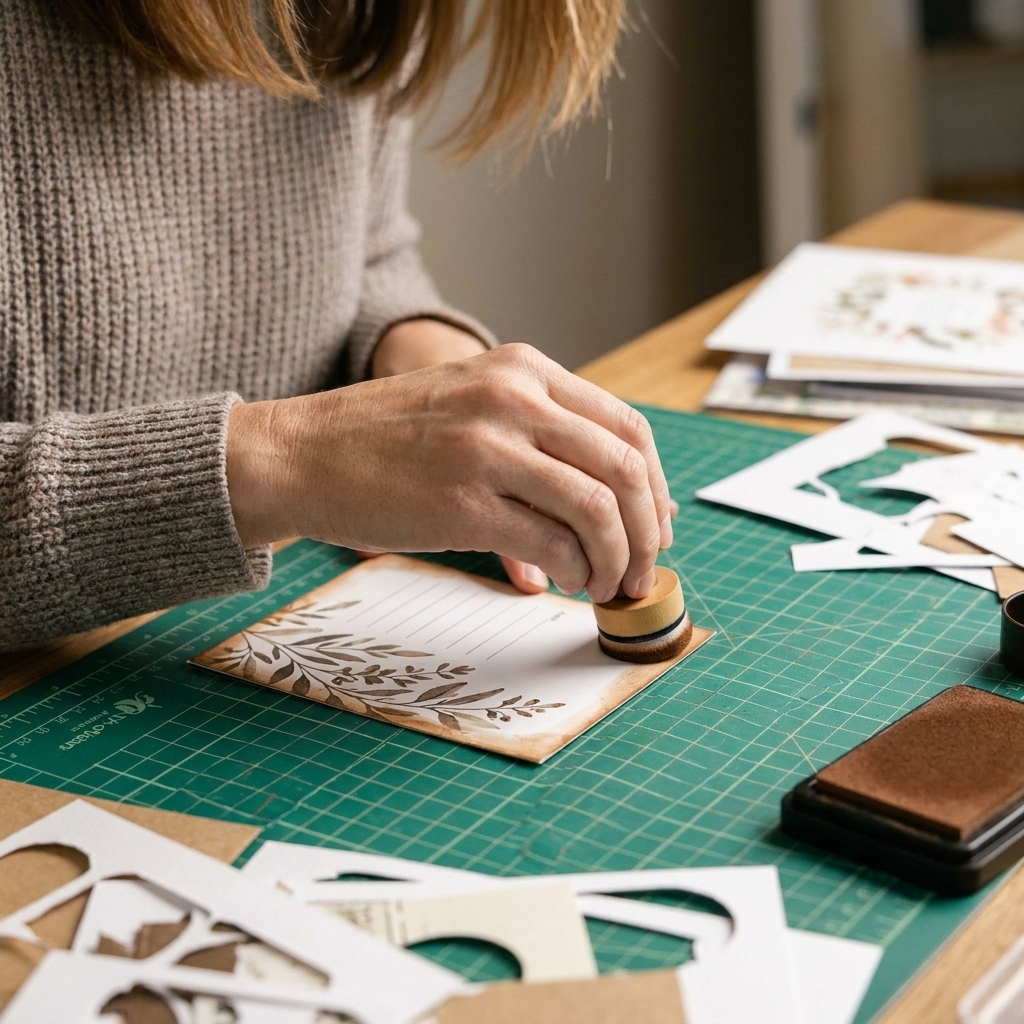
Ink the edges
A soft inked edge (brown, gray, or a color pulled from your page) instantly removes that bright “fresh printer paper” look.
Add real texture
- Staple a word strip to a paper banner
- Stitch around a printed journaling card
- Add a vellum overlay
- Tuck a printed label under a chipboard piece
Layer like real ephemera
Hybrid works best when your printed items are not floating alone. Mat a printable on patterned paper, tuck it behind photos, or cluster it with enamel dots and washi.
Use foam tape on purpose
If everything is flat, printables can look like “just paper.” Pop up a title or a focal piece with foam tape to create that cozy, real-life depth.
My beginner workflow
If you want a simple routine you can repeat, here is the one I use when I am crafting at the kitchen table.
- Pick your photos first. Even just two photos helps you choose colors and the vibe.
- Choose 1 digital set. A small kit of journaling cards, labels, and a couple of titles is plenty.
- Decide your page size. 12x12, 8.5x11, or traveler notebook, then build around it.
- Print a test sheet. Regular paper first, then cardstock once sizing looks right.
- Trim everything. I trim all printables in one sitting so I am not constantly stopping mid-layout.
- Build the base with physical papers. Background, mats, and big blocks of color come first.
- Add photos. Then tuck digital bits around them like you would with ephemera.
- Finish with real texture. Ink, stitching, pop dots, enamel dots, twine, stamping.
Resizing in common apps
You can do hybrid scrapbooking with almost any program that lets you drag, resize, and print. Here are a few quick notes for popular choices.
Canva
- Create a design sized 8.5x11 (or A4).
- Upload your printable PNG/JPG elements.
- Use the position tools and rulers to size items.
- Download as PDF Print for the sharpest text.
Google Slides or PowerPoint
- Set the slide size to 8.5x11.
- Insert your elements, then resize by dragging corners.
- Export or print at 100% scale.
Preview (Mac)
- Open the file and check print settings.
- Disable “Scale to fit” when you need exact dimensions.
- Use “Scale” with a specific percentage only if you are intentionally resizing.
If your printable is a full 8.5x11 sheet of cards, you usually do not need to resize at all. You just need correct print settings.
Color that plays nice
Printers are like tiny, opinionated roommates. They do what they want unless you nudge them kindly.
Quick wins
- Print the same file twice: one on plain paper, one on your chosen cardstock. Sometimes the paper alone solves color issues.
- Matte can feel more consistent: it often reduces glare, especially under warm craft room lighting, so colors can read more evenly on the page.
- Keep a “go-to” setting: once you like how “Normal” looks on your favorite cardstock, stick with it for consistency.
Printer settings that help
- Pick the right media type: “Plain paper,” “Matte,” or “Cardstock” changes how much ink gets laid down.
- Turn off auto-magic: settings like “Photo Enhance” or heavy color correction can shift a kit in weird ways. If you love how it looks, keep it. If not, try turning it off.
- Do a tiny swatch test: print a small strip of the kit (one journaling card, one label, one solid) before committing to a full page of pieces.
If colors still feel a little off
Instead of chasing a perfect match, make it look intentional:
- Repeat the printed color elsewhere, like a tiny enamel dot or a strip of washi.
- Mat the printable on a coordinating cardstock to bridge the gap.
- Ink the edges to soften the contrast.
Hybrid techniques to try
This is where it gets really fun. Treat printables like raw supplies, not precious finished items.
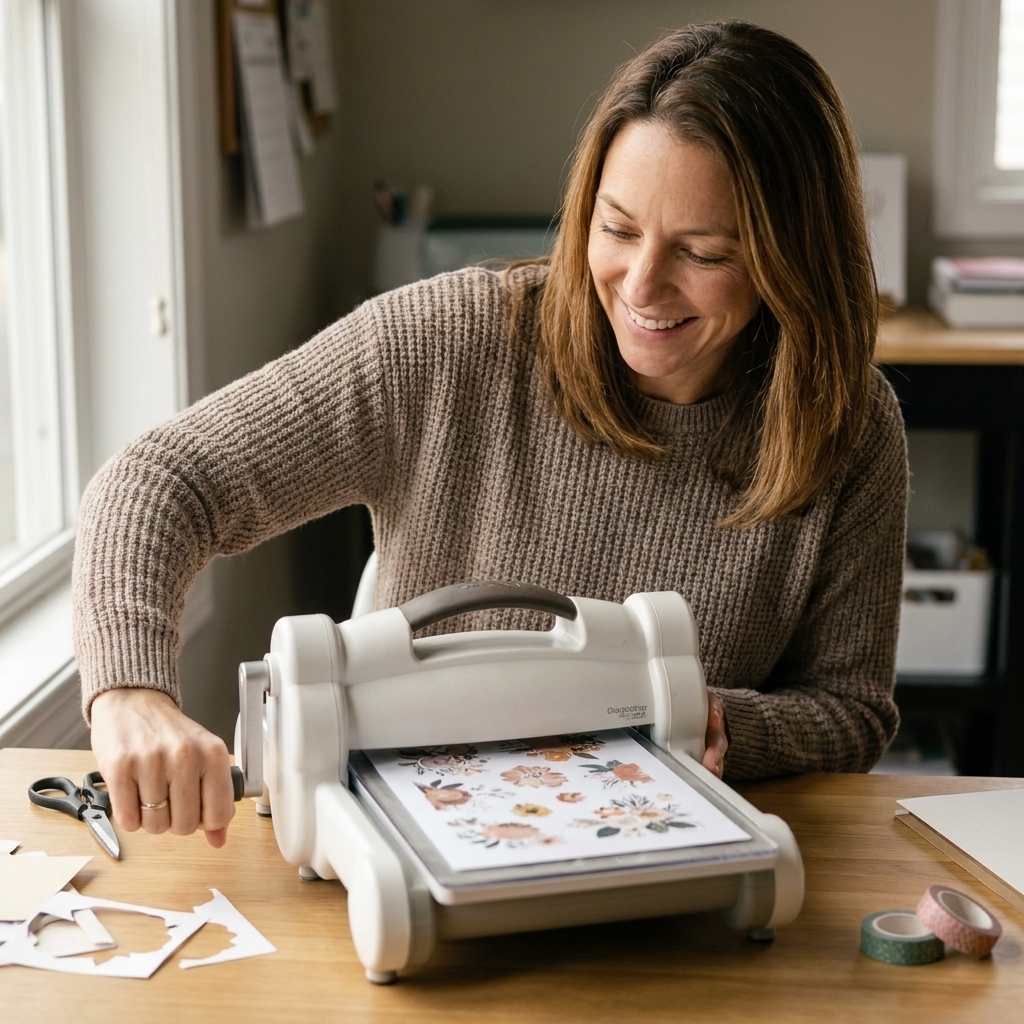
- Die-cut your printables: run printed paper through a die-cut machine for custom labels and shapes.
- Punch shapes: circles, tabs, and banners are instant.
- Make faux chipboard: glue a printed element to chipboard or stack it on scrap cardstock layers.
- Heat emboss accents: stamp on top of a printed journaling card and emboss for shine and texture.
- Distress edges: lightly rough up edges for a softer, lived-in look.
Cleaner cuts and easy trimming
Trimming can make or break that “store-bought ephemera” look, and you do not need perfection. You just need consistency.
- A guillotine or rotary trimmer gives straighter edges faster than scissors for stacks of cards.
- Cut in batches: trim all your 3x4s, then all your 4x6s. Your hands stay in the rhythm.
- If you design your own pieces, add crop marks: even simple corner marks help you line up cuts accurately.
Common problems
My printable text looks fuzzy
- Download as PDF when possible.
- Print at Best quality.
- Check that you are not enlarging a small PNG too much.
Everything printed slightly smaller
- Set print scaling to 100%.
- Disable “Fit to page.”
- Confirm your document and printer paper size match.
The ink smears when I glue
- Let prints dry longer.
- Use a tape runner instead of wet glue on large areas.
- If you love liquid glue, apply it sparingly and keep it away from heavy inked areas.
My printable looks too bright
- Ink edges.
- Mat it on patterned paper.
- Add real-life texture on top: stitching, staple, vellum, twine.
I stamped or sprayed on top and it bled
- For inkjet prints, go lighter with wet media, especially water-based sprays.
- If you want to get messy on purpose, consider pigment inks for stamping, or test a light workable fixative or clear spray sealer first on a spare print.
A first layout idea
If you want a no-pressure first project, try this:
- Page size: 8.5x11 (beginner-friendly and easy to print extras for)
- Photos: 1 large 4x6 or 2 smaller photos
- Digital elements: one 4x6 journaling card, one title, three word strips
- Physical supplies: one patterned paper for a vertical strip, a piece of cardstock for matting, and a handful of enamel dots
Build a simple design: patterned paper strip on one side, photos centered, journaling card tucked under, title above, then finish with word strips and a few pops of dimension. It comes together quickly and it teaches you the whole hybrid rhythm.
FAQ
Do I need Photoshop?
Nope. You can absolutely start with Canva, Google Slides, or PowerPoint. If you can place an image on a page and print at 100%, you can make hybrid layouts.
Inkjet or laser printer?
Both work. Inkjet is wonderful for rich color and photo-style printables, but you need to let it dry. Laser is crisp for text and is generally less prone to smudging, but toner can scuff on some papers and may crack along heavy folds. Use what you have, then adjust paper choice to get the finish you like.
Can I print on patterned paper?
You can, but readability can suffer fast. I prefer printing on white or very light cardstock, then layering on patterned paper so the design stays clean.
How do I store leftovers?
I keep mine in a simple zip pouch or a 6x8 pocket page protector, grouped by color or theme. And yes, I absolutely print extras because future-me loves finding a perfect label already cut out.
Ready to try it?
Hybrid scrapbooking is one of those techniques that feels fancy, but it is really just a few smart printing habits plus your usual paper crafting instincts. Start small, test print, and then let yourself play. If a title prints slightly off center or a label ends up a smidge too big, congratulations, you are officially one of us.
And if you want a little nudge: pick one photo, print one journaling card, and build a page around it tonight. Your patterned paper stash and your printer are about to become best friends.